Process Work
How Users Interact With PROCESS
General users work with running processes; they do not use Process Design or Test Process Logic. A participant normally enters PROCESS from My To-Do or an assignment email, opens the work currently available to them, completes a form, task, or approval, and then confirms that PROCESS recorded the result.
flowchart LR
    Find["My To-Do or<br/>assignment email"] --> Open["Open assigned<br/>process work"]
    Open --> Review["Review process context<br/>and requested work"]
    Review --> Complete["Complete form, task,<br/>or approval"]
    Complete --> Confirm["Confirm success and<br/>updated process state"]
Understand Live Work And Preview Screens
PROCESS has separate experiences for designing, previewing, and completing work. Knowing which experience you are using prevents a preview or test message from being mistaken for a real assignment.
| Experience | Who Uses It | What It Does | What It Does Not Do |
|---|---|---|---|
| Process Design and Test Process Logic | Administrators and process owners | Configure and simulate a process before publication | Create a running process or assign live work |
| Preview as User and Send Test Email | Administrators and reviewers | Show representative forms, tasks, approvals, and email content | Save responses, make decisions, complete tasks, or move a process |
| PROCESS Workspace and Work To Complete | Participants in a published process | Present authorized live work and record submitted outcomes | Expose design controls or bypass assignment and state checks |
A published design defines how future process instances behave. Publication alone does not place an item in a participant's queue. A running process must reach a state that creates or exposes work for that user or one of their roles.
Follow The Published Participant Journey
- A published process is started for a real business item.
- The process reaches a state containing a form, task, approval, or permitted transition.
- PROCESS assigns or exposes that work to an eligible person or role.
- The participant opens it from an email, notification, or My Task Queue.
- Work To Complete shows the process context and only the work currently available to that signed-in participant.
- The participant enters the requested information, evidence, note, or decision and submits it.
- PROCESS validates the tenant, assignment, role, current state, required fields, and other configured requirements again.
- After a successful response, the participant confirms the recorded outcome or updated process state. Any newly available work then appears for the appropriate participant.
Forms, tasks, and approvals serve different purposes. A form collects structured information and can accompany a transition. A task records that assigned work was completed but does not necessarily move the process. An approval records an eligible reviewer's decision and follows its configured approval and rejection paths.
Recognize The Participant Experience
PROCESS Workspace
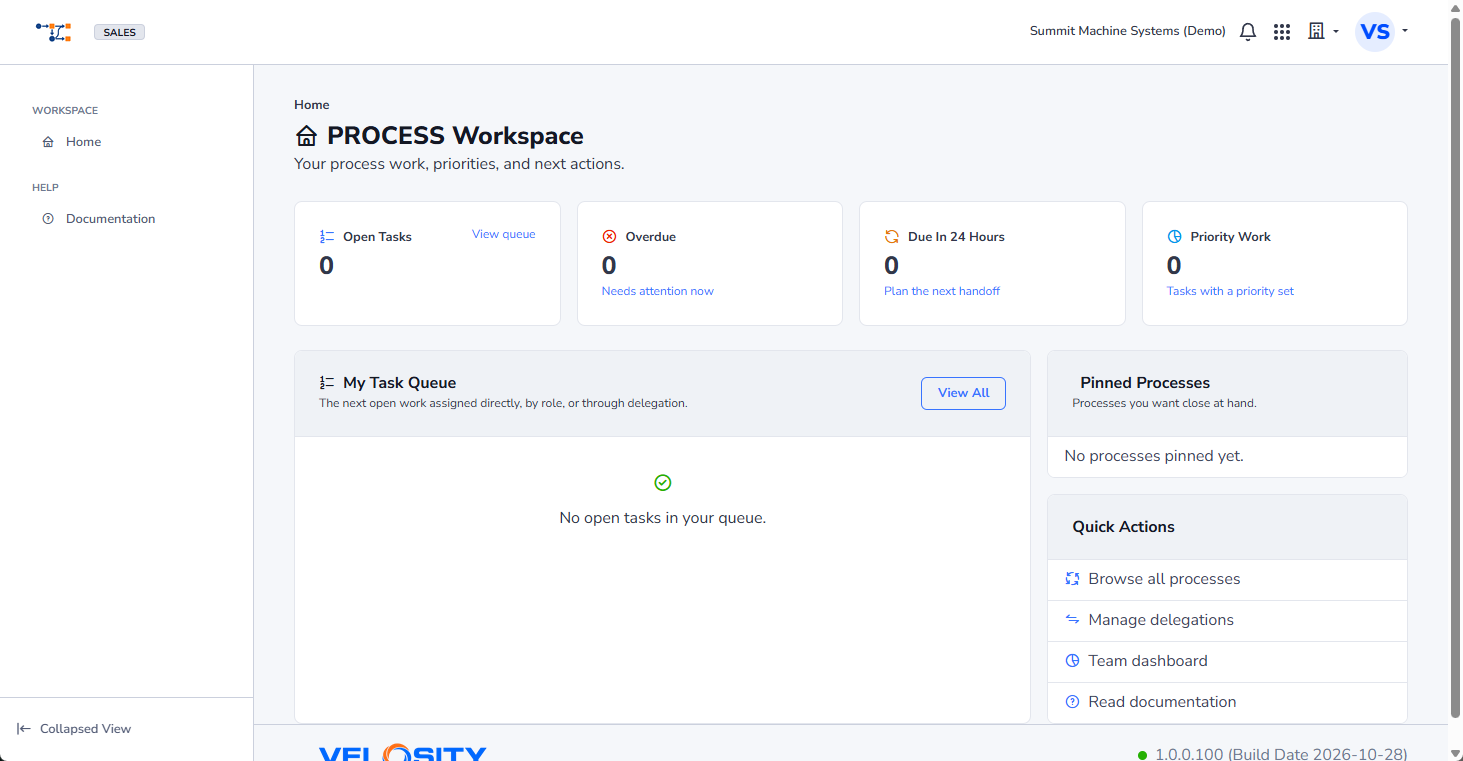
The PROCESS Workspace summarizes open, overdue, due-soon, and priority work. This example has no open tasks; assigned items appear in My Task Queue when work is available.
Process Notification Email
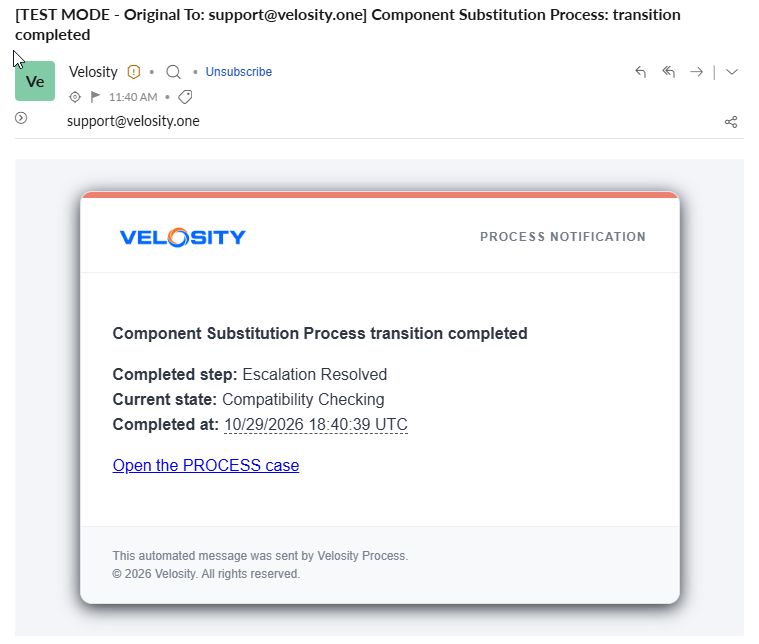
A process notification identifies the completed step and current state and links back to the PROCESS case. Test messages clearly identify the original recipient in the subject.
Form Preview
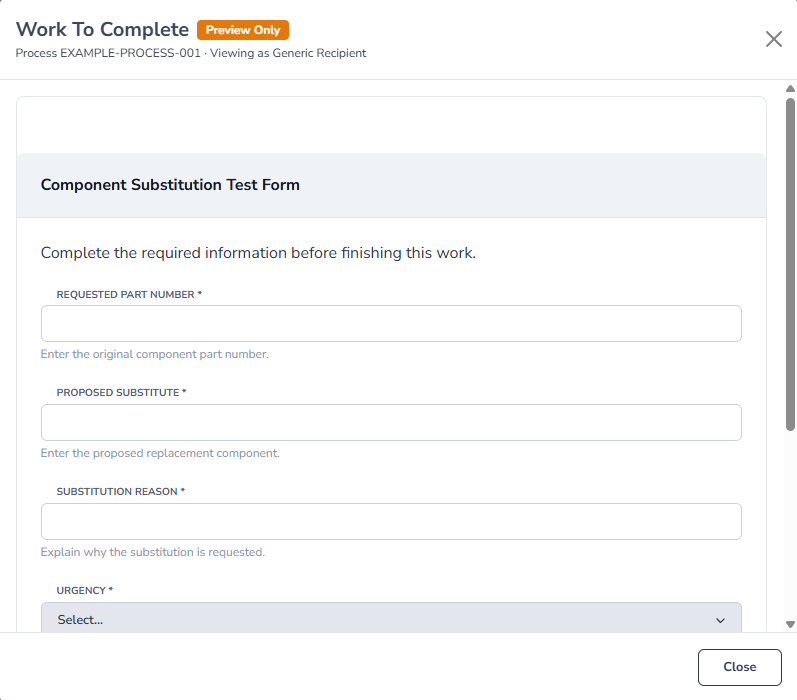
The safe administrator preview shows the same required fields, choices, instructions, and focused layout presented to a participant completing the form.
Assigned Task Preview
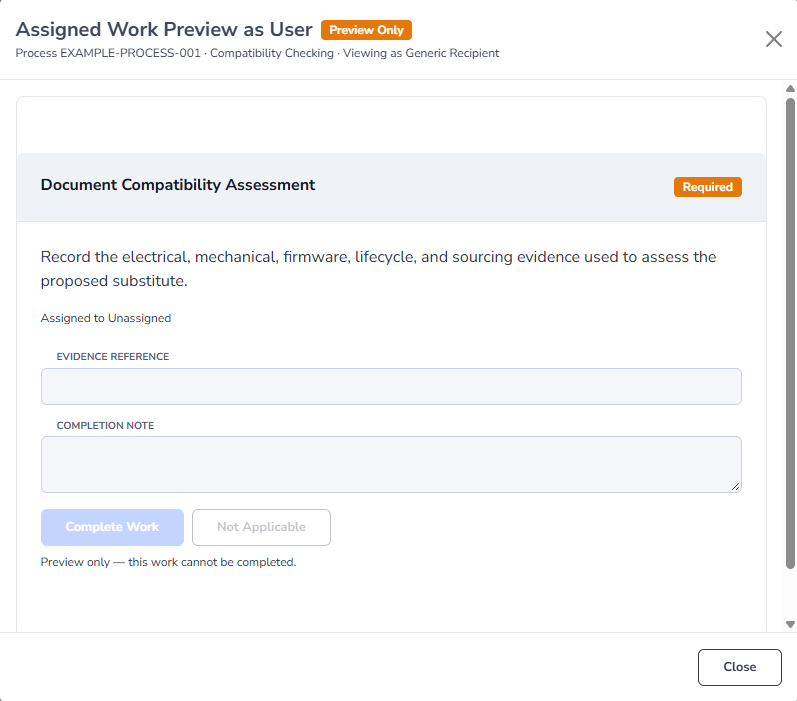
The task preview shows its instructions, assignment, required status, evidence reference, completion note, and available completion outcomes.
Approval Preview
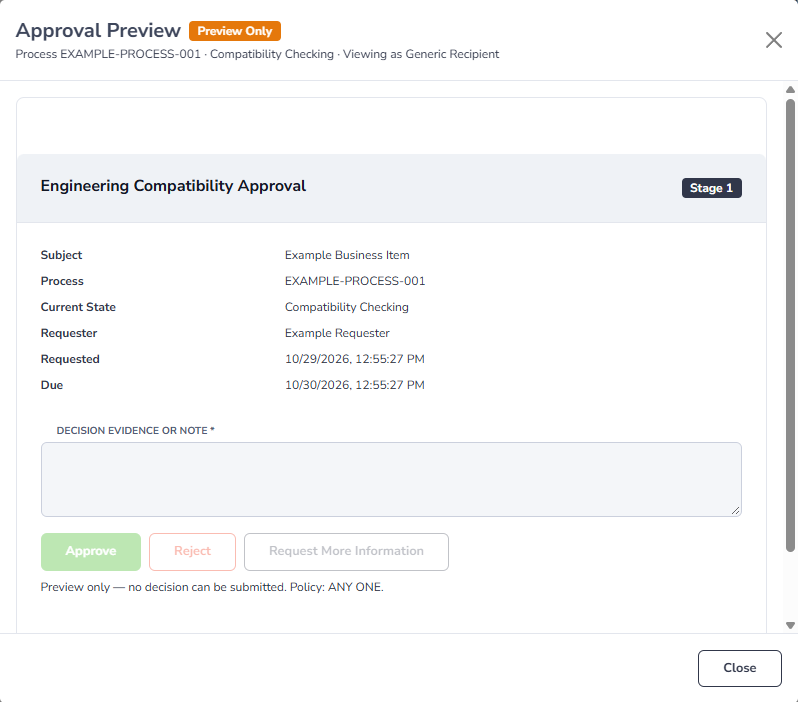
The approval preview shows the subject, process, current state, requester, timing, evidence requirement, policy, and available decisions.
The screenshots marked Preview Only are administrator previews of the participant layout. They do not create, complete, approve, or otherwise change running work. General users see the corresponding controls on Work To Complete without designer or preview controls.
In live work, enabled controls replace the disabled preview controls. The signed-in participant can submit only while the assignment remains available and the process is still in the expected state. A preview demonstrates layout and wording; a published runtime exercise demonstrates authorization, assignment, persistence, notifications, and lifecycle behavior.
Open Focused Work
A PROCESS email or notification can link directly to Process Work for one running process. The page shows only work that is currently available to you for that process:
- the transition named by the link, when you are authorized to take it;
- approval requests assigned to you;
- open tasks assigned directly to you, to one of your roles, or delegated to you.
flowchart LR
    Notice["Email or<br/>My To-Do"] --> SignIn["Sign in and<br/>open the link"]
    SignIn --> Checks["PROCESS checks tenant,<br/>role, assignment, and state"]
    Checks --> Work["Work To Complete"]
    Work --> Submit["Submit form, decision,<br/>or task outcome"]
    Submit --> Confirm["Confirm the recorded result<br/>or updated process state"]
This is the participant journey. Process Design and Test Process Logic are administrator tools and are not part of the work-completion screen.
The link does not grant access. PROCESS checks your signed-in tenant, roles, the current process state, transition rules, assignments, and other requirements when the page loads and again when you submit work.
Understand Focused-Work Access Checks
The email link identifies a process and, when applicable, a transition. It is a navigation aid rather than an access token. PROCESS applies these checks before showing actionable work:
- Authentication: You must sign in. If the message was forwarded, the forwarded recipient does not inherit the original recipient's permissions.
- Tenant: Your active organization must match the running process. Change organizations only when you legitimately belong to the organization that owns the work.
- Role: A role-restricted transition or role assignment appears only when one of your active PROCESS roles is eligible.
- Assignment: Direct tasks and approval requests appear only for their assignee, eligible role members, or a valid delegate. Shared role work may change after another person claims it.
- Current State: The process must still be in the state where the action, form, approval, or task is valid. Moving the process invalidates work from an earlier state.
- Runtime Requirements: Required work, approval policy, transition rules, form requirements, and other configured gates are evaluated using the current process data.
PROCESS repeats the relevant checks when you submit. Keeping an old page open does not reserve the work or guarantee that an action remains valid. Reload the page when the process may have changed, and use My To-Do to find your current assignments.
Follow A Form Assignment From Email
A form-assignment email identifies the process and requested work, then provides an Open Assigned Work button. A representative message looks like this:
Subject: Complete Supplier Review
Process:
EXAMPLE-PROCESS-001
Business Item: SupplierSUP-1042
Current State: Compliance Review
Requested By: Example RequesterOpen Assigned Work
After you select the button and sign in, PROCESS opens Work To Complete for that process. The assigned form appears in a card with its instructions, required fields, and a Complete button. The page may also show approvals or tasks assigned to you for the same process.
The form page is not Process Designer. It contains only the running process context and work currently available to the signed-in recipient. Required fields are marked with an asterisk. Attachment fields upload evidence to the process record. Submitting the form records its values and attempts the configured transition; it does not give the recipient access to edit the process design.
If the email is old, the destination may report that the work is complete, unavailable, expired, or assigned to someone else. Return to My To-Do for your current assignments instead of repeatedly using an old message.
Follow An Approval Request From Email
An approval email identifies the decision and provides an Open Assigned Work button. A representative message looks like this:
Subject: Supplier Review Approval Required
Process:
EXAMPLE-PROCESS-001
Business Item: SupplierSUP-1042
Current State: Approval Pending
Requested By: Example RequesterOpen Assigned Work
After you select the button and sign in, PROCESS opens Work To Complete and displays the approval request assigned to you. The approval card shows the subject, process, current state, requester, requested time, due time when configured, and the current approval stage.
Review the process evidence and enter a useful Decision Evidence Or Note. Then choose Approve, Reject, or Request More Information when that option is available. Required evidence is marked with an asterisk. A decision is recorded only after PROCESS verifies that you are still an eligible approver and the request is still pending.
The approval page is not Process Designer and does not expose design controls. Depending on the configured policy, your decision may satisfy the approval, contribute one vote toward a quorum, route the process to rejection, or request additional information. If another approver already completed the request or the process moved, the page reports that the work is no longer available.
Complete an Action
Read the action description and enter a comment when one is required. Complete every required form field before submitting. An attachment field uploads the file as process evidence and records its evidence ID with the form response.
Select Complete only after the requested business outcome is known. PROCESS validates that the process is still in the expected state before executing the transition, so an older link cannot silently apply an action to a process that has already moved.
Record Approvals and Tasks
For an approval, enter useful decision evidence or a note, then select Approve or Reject. For a task, enter an evidence reference and completion note, then select Complete Work. Task completion records the work but does not necessarily move the process to another state.
If the page says the work is no longer available, it may already be complete, the process may have moved, or the work may be assigned to someone else. Open My To-Do for your current queue or Running Processes for the full process record.
Understand What Happens After Your Action
After a successful action, PROCESS records the result in the running process and refreshes what remains available:
- Form submission: PROCESS validates required and conditional fields, stores the form response, records uploaded attachments as evidence, and attempts the associated transition. A successful transition moves the process to its configured next state and can create new tasks, approvals, and notifications.
- Approval decision: PROCESS records the approver, outcome, evidence or note, and decision time. The request may remain pending when additional approvers or quorum votes are required. A satisfied approval policy can enable or execute its configured outcome; rejection and information requests follow their configured routes.
- Task completion: PROCESS records the completion outcome, evidence reference, note, person, and time. Completing a task does not automatically move the process unless the design separately provides an authorized transition. Required-work gates may become available after all required tasks are resolved.
- Unavailable work: PROCESS does not record a new outcome. The work may be completed, expired, reassigned, claimed by someone else, invalid for the current state, or inaccessible to your current tenant and role. Refresh My To-Do and open the current process rather than retrying an obsolete link.
Do not treat an email-delivery confirmation or a button click as proof that the business outcome occurred. Look for the success message, updated process state, recorded decision, or completed task before considering the work finished.
Confirm Your Result
After submitting live work, look for evidence appropriate to the action:
- Transition or form: A success confirmation and the expected new process state.
- Approval: A recorded decision or an updated approval status. A quorum approval can remain pending for other reviewers.
- Task: A recorded completion outcome. The process can remain in the same state until a separate transition is taken.
- Unavailable work: An explanation that the item is no longer actionable. Return to the current process or My Task Queue instead of resubmitting an old page.
If the page reports an error, do not assume the action succeeded. Preserve any evidence you prepared, reload the process, and confirm its current state and history before trying again. If another participant acted first, follow the newly available work rather than attempting to recreate the previous state.
Review Before You Submit
Confirm the process and entity named at the top of the page. Read the current state, action description, and any task instructions in full. If the decision depends on a document or source-system record, open and verify that material before choosing an outcome.
Comments should explain the decision rather than repeat the button label. For example, record which requirement passed, which exception was accepted, or why rework is necessary. When a form asks for structured values, enter them in the form instead of hiding them in a free-text comment; structured responses are easier to validate and review later.
Review Previous Work Quality
When your current work depends on a task that another person completed earlier in the same process, Previous Work Quality appears on the focused work page. Choose the outcome that describes what you received:
- Accept when the work is complete and usable.
- Accept With Issue when you can continue, but the work has a quality problem.
- Rework Required when the problem prevents reliable downstream work.
Describe the specific problem when you report an issue or require rework. Focus on the work product, missing evidence, or unmet acceptance criteria. PROCESS permits feedback only from a person who currently has downstream work in that process. You cannot review your own completed task. You may update your rating while the downstream work remains open.
Understand Each Kind Of Work
A transition changes the lifecycle from one state to another. An approval records an assigned reviewer’s decision. A task records that requested work is complete. A single page can show more than one kind of work, and completing one does not imply the others are complete. Follow the sequence stated by the design and reload the page after each successful submission.
Resolve Submission Problems
Required fields are marked on the form. Correct validation messages and submit again only after reviewing the values. If PROCESS reports that the state changed, the work was completed, or authorization is no longer valid, reload the page and follow the current process. Do not use an old browser tab as evidence that an action is still available.
If a file upload fails, keep the source file, note the process ID, and retry according to your organization’s procedure. Do not complete a decision that requires the missing attachment unless the process provides an approved alternative.